Legacy Documentation
Desktop And Mini DBA Server
Legacy Documentation Home
alerts
analysisservicesalerts
analysisservicescpu
analysisservicesdashboard
analysisservicesdatabases
analysisservicesio
analysisservicessessions
azurealerts
azuredatabase
azuredatabasehealthcheck
azureindexes
azurelocks
azure security
azuresessions
azuresql
azuresqldatabase
azuresqldatabasedashboard
azuresqldatabases
azure sql server dashboard
azuretables
azurewaits
compare performance baseline
connections
cpu
custom sql server alerts
database
database query performance
databases
defaulttrace
dm exec query statistics xml
documentation
errorlog
files
gettingstarted
healthcheck database
healthcheck sql server
history active
history blocking
history data storage
history deadlocks
history files
history memory
history viewer
history waits
howtoperformancetuneazuresqldatabase
how to performance tune sql server
how to sql server performance tuning
how to sql server query tuning
indexes
Installation
io
License Support
locks
maintenance windows
options
performance history
security
server
servergettingstarted
Server Installation
server memory
serveroptions
serversecurity
servertroubleshooting
sql database memory
sql execution plan
sql extended event sessions
sql server activity
sql server alert configuration
sql server alerts
sql server database
sql server execution plan view
sql server index defrag jobs
sqlserverindexfragmentation
sql server index fragmentation
sql server index maintenance
sql server live query statistics
sqlserverqueryperformance
sql server query performance
sql server send slack alerts
sql server send teams alerts
sql server transaction log
sql server wait statistics
tables
tranlog
waits
webmonitorconfigure
webmonitorconnections
webmonitorcurrent
webmonitorcustom
webmonitorenterprise
webmonitorgettingstarted
webmonitorhistoric
webmonitorinstallation
webmonitorio
webmonitormemory
webmonitoroptions
webmonitoroverview
webmonitorsecurity
webmonitorwaits
wmi
WMI - (Windows Management Instrumentation) is used by Mini DBA to access cpu and Windows process information on monitored servers. It is NOT essential to SQL Server monitoring but is required to see running processes and cpu core performance.
By default remote servers will not let Mini DBA read WMI data unless the Windows account it is running under is a member of the administrators group on that server. This is often undesirable as that gives the Windows account too many permissions on the remote server.
The fix is to give the Windows account read access to the remote servers WMI data by doing the following:
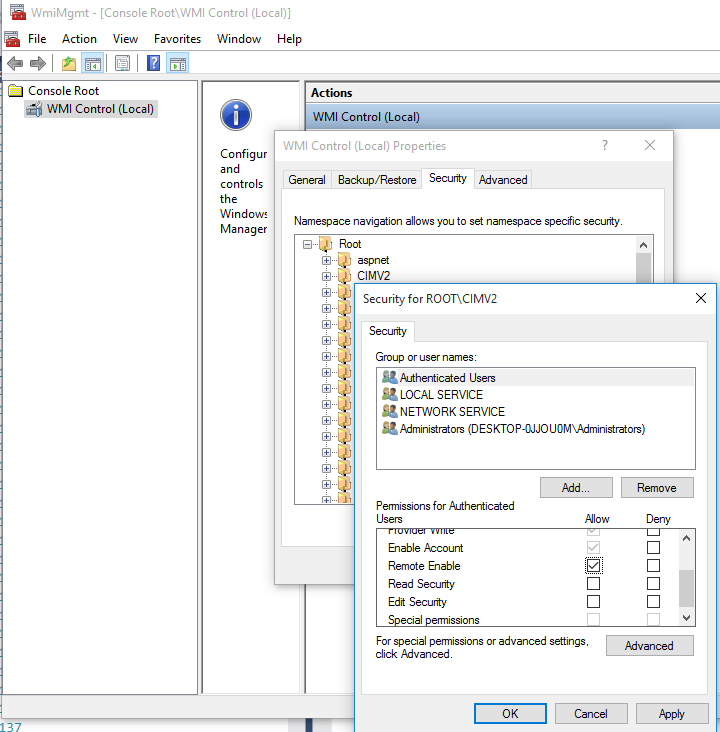
By default remote servers will not let Mini DBA read WMI data unless the Windows account it is running under is a member of the administrators group on that server. This is often undesirable as that gives the Windows account too many permissions on the remote server.
The fix is to give the Windows account read access to the remote servers WMI data by doing the following:
- Log on to remote server as an administrator
- Open the WMI Control console: Click Start, click Run, type wmimgmt.msc and then click OK.
- In the console tree, right-click WMI Control, and then click Properties.
- Click the Security tab.
- Select CIMV2 then click security
- In the Security dialog box, click Add.
- In the Select Users, Computers, or Groups dialog box, enter the name of the object (user or group) that Mini DBA is running as - this should be a network account or group. Click Check Names to verify your entry and then click OK. You might have to change the location or click the Advanced button to query for objects.
- In the Security dialog box, under Permissions, select "Remote Account"