Legacy Documentation
Desktop And Mini DBA Server
Legacy Documentation Home
alerts
analysisservicesalerts
analysisservicescpu
analysisservicesdashboard
analysisservicesdatabases
analysisservicesio
analysisservicessessions
azurealerts
azuredatabase
azuredatabasehealthcheck
azureindexes
azurelocks
azure security
azuresessions
azuresql
azuresqldatabase
azuresqldatabasedashboard
azuresqldatabases
azure sql server dashboard
azuretables
azurewaits
compare performance baseline
connections
cpu
custom sql server alerts
database
database query performance
databases
defaulttrace
dm exec query statistics xml
documentation
errorlog
files
gettingstarted
healthcheck database
healthcheck sql server
history active
history blocking
history data storage
history deadlocks
history files
history memory
history viewer
history waits
howtoperformancetuneazuresqldatabase
how to performance tune sql server
how to sql server performance tuning
how to sql server query tuning
indexes
Installation
io
License Support
locks
maintenance windows
options
performance history
security
server
servergettingstarted
Server Installation
server memory
serveroptions
serversecurity
servertroubleshooting
sql database memory
sql execution plan
sql extended event sessions
sql server activity
sql server alert configuration
sql server alerts
sql server database
sql server execution plan view
sql server index defrag jobs
sqlserverindexfragmentation
sql server index fragmentation
sql server index maintenance
sql server live query statistics
sqlserverqueryperformance
sql server query performance
sql server send slack alerts
sql server send teams alerts
sql server transaction log
sql server wait statistics
tables
tranlog
waits
webmonitorconfigure
webmonitorconnections
webmonitorcurrent
webmonitorcustom
webmonitorenterprise
webmonitorgettingstarted
webmonitorhistoric
webmonitorinstallation
webmonitorio
webmonitormemory
webmonitoroptions
webmonitoroverview
webmonitorsecurity
webmonitorwaits
wmi
Azure Database Sessions
The SSAS sessions screen displays 4 tabs: All, Active, Blocking & Blocked. These in turn display all sessions, sessions that are blocking other sessions and finally sessions being blocked by other sessions.
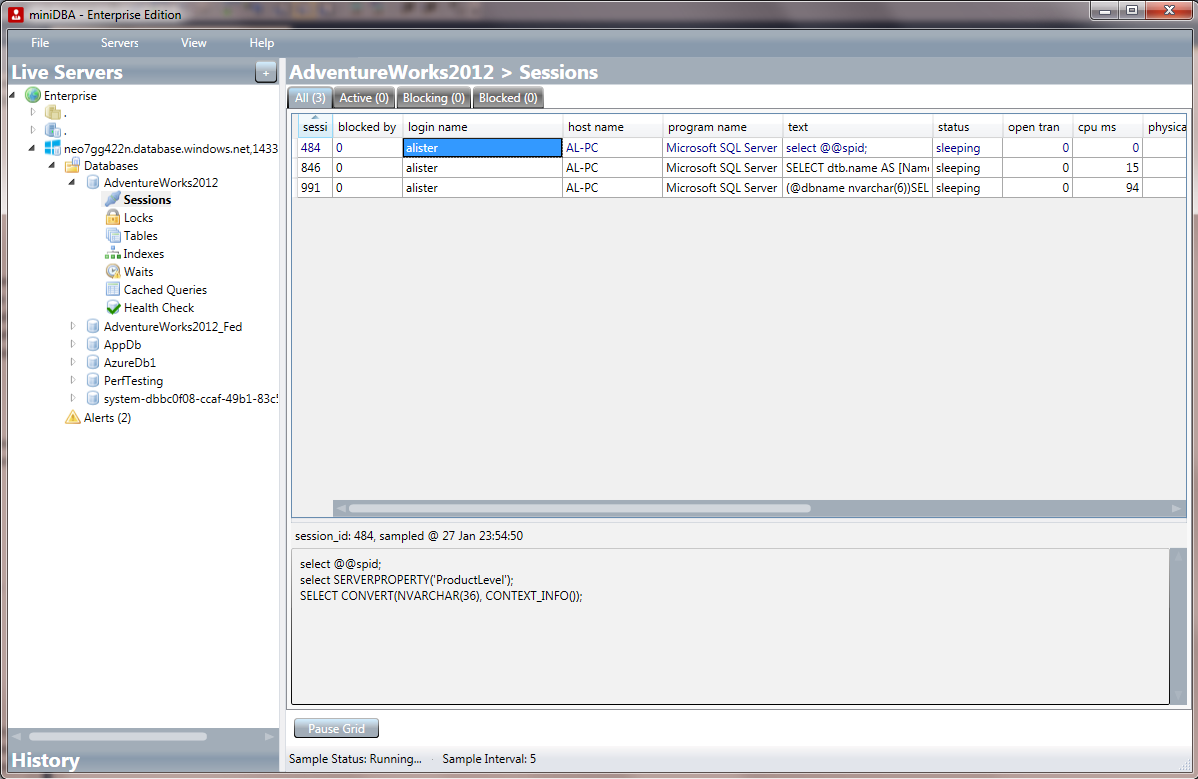
The grids of sessions details update themselves in real time. Pressing the "Pause Grid" button at the bottom of the screen will freeze the data in the grid until you press the button again.
The following are the properties shown for each session:
- - Spid
- - Blocked By
- - Login Name
- - Host Name
- - Program Name
- - Text (T-SQL)
- - Status
- - Open Tran
- - Physical Disk Reads
- - Physical Disk Writes
- - Last command
- - Last Command Start Time
- - Last Command End Time
- - Memory Kb
- - Read Kb
Clicking on a sessions row will show you the last query it ran on the server in the lower pane of the window.
This view makes it very easy to get a "At A Glance" picture of sessions in the instance.
Being able to instantly which sessions are active & potentially blocking and where memory & CPU is being consumed can help troubleshoot performance problems highly effectively.