Legacy Documentation
Desktop And Mini DBA Server
Legacy Documentation Home
alerts
analysisservicesalerts
analysisservicescpu
analysisservicesdashboard
analysisservicesdatabases
analysisservicesio
analysisservicessessions
azurealerts
azuredatabase
azuredatabasehealthcheck
azureindexes
azurelocks
azure security
azuresessions
azuresql
azuresqldatabase
azuresqldatabasedashboard
azuresqldatabases
azure sql server dashboard
azuretables
azurewaits
compare performance baseline
connections
cpu
custom sql server alerts
database
database query performance
databases
defaulttrace
dm exec query statistics xml
documentation
errorlog
files
gettingstarted
healthcheck database
healthcheck sql server
history active
history blocking
history data storage
history deadlocks
history files
history memory
history viewer
history waits
howtoperformancetuneazuresqldatabase
how to performance tune sql server
how to sql server performance tuning
how to sql server query tuning
indexes
Installation
io
License Support
locks
maintenance windows
options
performance history
security
server
servergettingstarted
Server Installation
server memory
serveroptions
serversecurity
servertroubleshooting
sql database memory
sql execution plan
sql extended event sessions
sql server activity
sql server alert configuration
sql server alerts
sql server database
sql server execution plan view
sql server index defrag jobs
sqlserverindexfragmentation
sql server index fragmentation
sql server index maintenance
sql server live query statistics
sqlserverqueryperformance
sql server query performance
sql server send slack alerts
sql server send teams alerts
sql server transaction log
sql server wait statistics
tables
tranlog
waits
webmonitorconfigure
webmonitorconnections
webmonitorcurrent
webmonitorcustom
webmonitorenterprise
webmonitorgettingstarted
webmonitorhistoric
webmonitorinstallation
webmonitorio
webmonitormemory
webmonitoroptions
webmonitoroverview
webmonitorsecurity
webmonitorwaits
wmi
As Mini DBA Server is a Windows service it has no front end UI to communicate any problems it is having but it has other ways of letting you know what is happening behind the scenes:
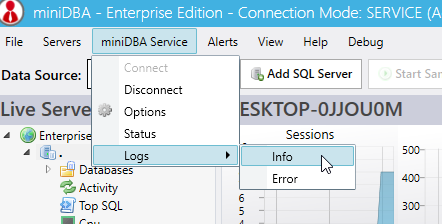
These options will display the log files through the UI:
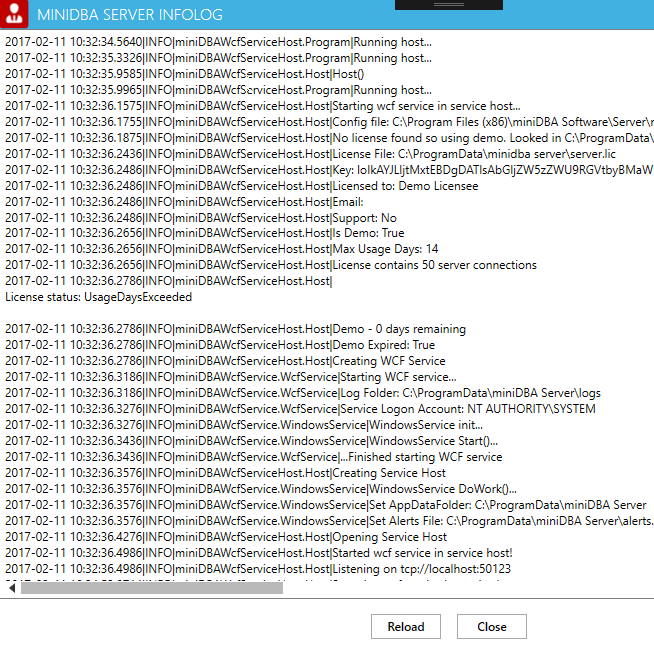
The info file is a good place to start as it tells you about your license status and security.
The error log is more technical and is only helpful if the info log provides no clues. It normally contains a lot of information as it is verbose so can take a while to look at. If you have a support contract send it to support@minidba.com and we will take a look at it.
You may have to change your view settings in Windows Explorer to show hidden items in order to see the ProgramData folder
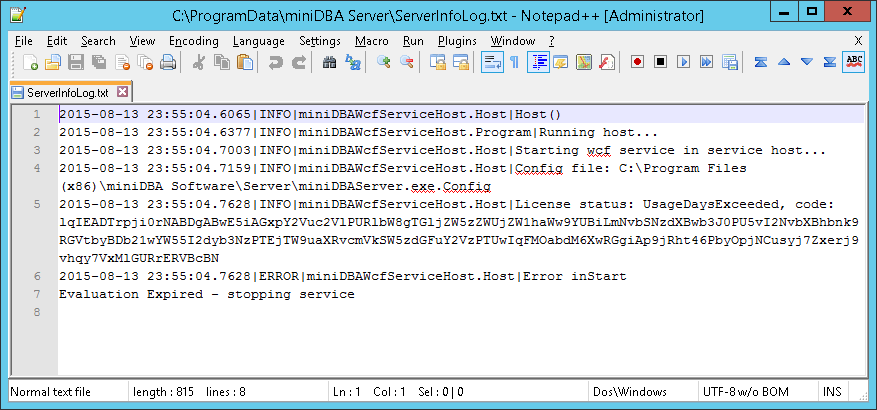
The following screenshot shows the contents of the InfoLog, in this case showing that the Mini DBA Server service shut down as the demo license had expired:
The service should be stopped before trying this.
Use the start menu shortcut in Mini DBA Software > Start Server Console
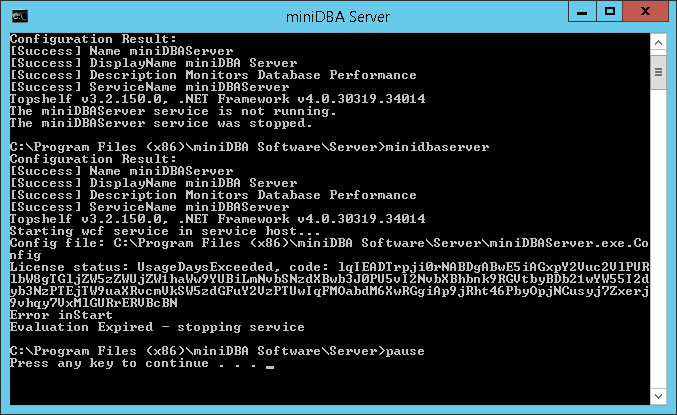
The following screenshot shows the server running in console mode, experiencing the same demo license issue as the info log above:
NOTE: console mode will run as your current Windows login which is unlikely to be the same as the account chosed for the service to run under. This means console mode may behave differently to the server running as a windows service.
Between the info log and the console mode, any issues with the server should be able to be identified.
Any security issues encountered, with the service attempting to use files or contact servers will likely be fixed by changing the service logon account. Outside of demo licenses expiring this is the number 1 reason for the service not starting.
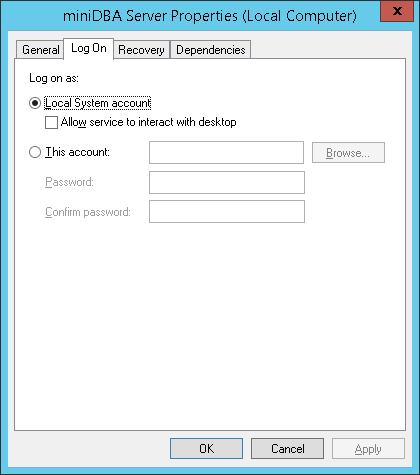
The above screenshot shows the logon being set to "Local System Account" which may not have the security required to connect to your SQL Servers.
It is recommended that you use a security account that has permissions to access files on the local server and also the correct permissions on the SQL Servers that will be accessed.
Logs through the Desktop application
Mini DBA SERVER has 2 log files; INFO and ERROR. Mini DBA Desktop can be used to view them if it can connect to Mini DBA Server, using the Mini DBA Server menu:
These options will display the log files through the UI:
The info file is a good place to start as it tells you about your license status and security.
The error log is more technical and is only helpful if the info log provides no clues. It normally contains a lot of information as it is verbose so can take a while to look at. If you have a support contract send it to support@minidba.com and we will take a look at it.
Info Log File: C:\ProgramData\miniDBA Server\ServerInfoLog.txt
If you cant connect Mini DBA Desktop to Mini DBA Server, you wont be able to use the above method to view the logs so you will need to view the files directly.You may have to change your view settings in Windows Explorer to show hidden items in order to see the ProgramData folder
The following screenshot shows the contents of the InfoLog, in this case showing that the Mini DBA Server service shut down as the demo license had expired:
Starting the server console
Output from the service can be seen in a command prompt when started in console mode. This is only for testing.The service should be stopped before trying this.
Use the start menu shortcut in Mini DBA Software > Start Server Console
The following screenshot shows the server running in console mode, experiencing the same demo license issue as the info log above:
NOTE: console mode will run as your current Windows login which is unlikely to be the same as the account chosed for the service to run under. This means console mode may behave differently to the server running as a windows service.
Between the info log and the console mode, any issues with the server should be able to be identified.
Any security issues encountered, with the service attempting to use files or contact servers will likely be fixed by changing the service logon account. Outside of demo licenses expiring this is the number 1 reason for the service not starting.
The above screenshot shows the logon being set to "Local System Account" which may not have the security required to connect to your SQL Servers.
It is recommended that you use a security account that has permissions to access files on the local server and also the correct permissions on the SQL Servers that will be accessed.